

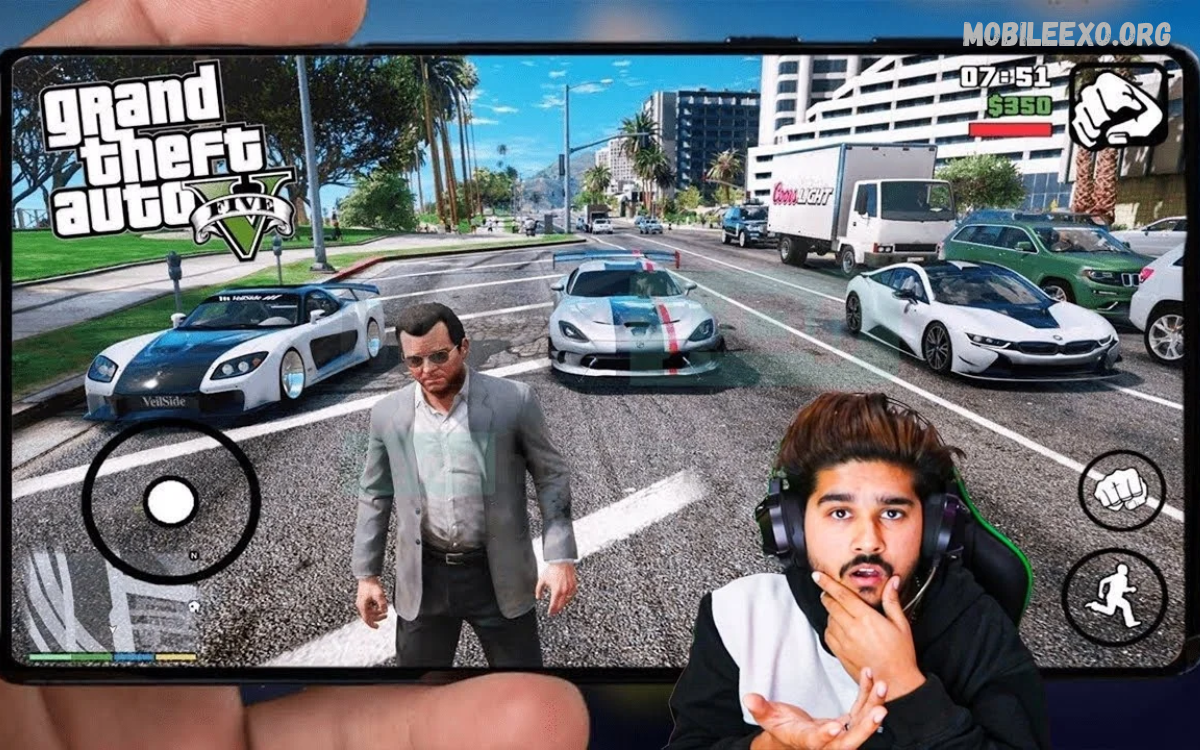
GTA Android gameplay brings the exciting world of Grand Theft Auto to mobile devices, letting players explore cities, complete missions, drive vehicles, and enjoy open-world adventures.
This GTA Android gameplay guide covers essential controls, mission strategies, driving techniques, combat basics, graphics settings, and useful performance tips.
Understanding GTA Games on Android
Grand Theft Auto includes several titles available on Android through official releases, depending on device compatibility and regional availability. Each game features unique characters, cities, missions, vehicles, and storylines, so gameplay varies between versions.
Before starting, identify the GTA game installed on your device and review its official requirements. Download games through Google Play or another publisher-authorized source, check available storage, and ensure your Android version supports the selected release.
Getting Started with GTA Android Gameplay
Starting GTA on Android usually involves launching the installed game, adjusting basic settings, and beginning a new story or loading an existing save. Follow the introductory instructions to learn movement, camera control, interaction, driving, and mission objectives.
New players should spend time exploring the tutorial before attempting difficult missions. Understanding the interface, map, health indicators, weapon selection, and save options makes the experience easier and reduces mistakes during important objectives.
GTA Android Controls and Settings
Mobile GTA games generally use touchscreen controls, including virtual movement sticks, action buttons, camera controls, and driving inputs. Depending on the title, players may also have access to customizable layouts, controller support, or alternative control schemes.
Open the settings menu and choose a layout that feels comfortable for your screen size. Adjust sensitivity gradually, keep important buttons within easy reach, and test the configuration during simple activities before using it in challenging missions.
How to Move Around the GTA Map
Exploring the map is an important part of GTA Android gameplay because cities contain roads, shops, mission locations, hidden areas, and useful landmarks. The map or minimap helps players identify destinations, follow routes, and understand their surroundings.
Move through unfamiliar neighborhoods carefully and watch the minimap for turns or mission markers. Learning major roads, bridges, safe routes, and nearby vehicle locations can make traveling easier and help you reach objectives with less confusion.
GTA Android Mission Guide
Missions provide structure to GTA gameplay through objectives involving driving, exploration, character interactions, deliveries, races, and other challenges. Each mission has specific requirements, so reading instructions before acting helps prevent unnecessary mistakes.
Pay attention to destination markers, mission prompts, time limits, and completion conditions. If a mission becomes difficult, identify the main obstacle, improve your equipment or driving approach, and retry with a more suitable strategy instead of rushing.
Tips for Completing Missions Successfully
Preparation can make challenging GTA missions more manageable. Check your health, understand the objective, select suitable equipment when available, and choose a reliable vehicle for missions involving long journeys or time-sensitive travel.
During a mission, prioritize the stated objective instead of unnecessary exploration. Use the map to plan routes, avoid distractions, and follow on-screen instructions carefully. After completion, review any rewards or newly unlocked activities before continuing your adventure.
Driving Cars and Motorcycles in GTA Android
Driving is a central feature of many GTA games, with cars, motorcycles, trucks, and other vehicles offering different handling characteristics. Acceleration, braking, steering, and camera movement may feel different depending on the selected vehicle and the specific game.
Practice turning, stopping, reversing, and controlling speed in an open area. Avoid excessive acceleration around sharp corners, leave enough space for braking, and select vehicles that match the mission requirements rather than choosing solely by appearance.
Improving Driving Skills on Mobile
Touchscreen driving can require practice because steering and acceleration often use separate virtual buttons. Smooth inputs help maintain control, especially during races, crowded traffic situations, narrow streets, and missions that require reaching a destination quickly.
Use moderate speeds when navigating unfamiliar roads and reduce acceleration before sharp turns. Experiment with available camera angles, maintain awareness of traffic, and learn how each vehicle responds to braking and steering to improve consistency.
GTA Android Combat Basics
Combat mechanics vary across GTA titles, but many games include aiming, shooting, weapon selection, movement, and health management. Understanding the controls before entering difficult encounters can improve reaction time and help players respond more effectively to mission challenges.
Learn how to switch equipment, aim accurately, and move between available positions. Avoid unnecessary confrontations during exploration, monitor health indicators, and use the game’s tutorial or practice opportunities to become familiar with combat mechanics.
Choosing Weapons and Equipment
Different missions may require different approaches, and available equipment depends on the GTA version. Some objectives emphasize driving or stealth, while others involve direct combat, so selecting suitable tools can make progress more efficient.
Review the mission description and available inventory before beginning challenging objectives. Follow the game’s instructions for obtaining or changing equipment, and remember that weapon availability, aiming features, and inventory systems can differ between mobile releases.
Managing Health and Mission Resources
Health and other resources influence how long a character can continue during demanding missions. Depending on the title, players may find recovery items, safe locations, equipment shops, or other systems that support preparation and progress.
Monitor the health display and avoid entering difficult missions without understanding the available recovery options. Learn how saving works in your version, because saving progress at appropriate points can reduce the frustration of repeating completed activities.
Understanding the GTA Android Map
The map provides a useful overview of the game’s world, including streets, important locations, mission markers, and destinations. Some titles gradually reveal activities as players advance through the storyline, while others make many locations available from the beginning.
Check the map whenever you receive a new objective or become uncertain about your route. Zoom in when navigating complex streets, identify major landmarks, and use visible markers to plan travel without spending unnecessary time searching for destinations.
Exploring the Open World
Open-world exploration lets players discover neighborhoods, interact with the environment, visit shops, locate vehicles, and experience activities outside the main storyline. The available features depend on the game, but exploration often provides a welcome break from mission progression.
Set aside time to learn the city and discover locations at your own pace. Follow roads into unfamiliar districts, observe landmarks, and experiment with permitted activities while keeping track of mission progress and any important objectives.
GTA Android Graphics Settings
Graphics settings influence visual quality, battery consumption, and gameplay smoothness. Depending on the game, options may include resolution, shadows, visual effects, draw distance, or other performance-related adjustments that affect how the world appears on screen.
If gameplay feels slow, lower demanding graphics options when available and test the results. Players with more capable devices can experiment with higher settings, but stable performance is often more useful than visual quality that causes frequent stuttering.
Improving GTA Performance on Android
Smooth gameplay depends on device hardware, game optimization, available memory, storage conditions, and background activity. Closing unnecessary apps and keeping enough free storage can reduce performance issues on some Android devices.
Restart your device if performance becomes unusually poor, install official game updates, and check whether your phone is overheating. Avoid unofficial performance tools that request unnecessary permissions, promise unrealistic improvements, or modify game files without authorization.
Read Also: Best GTA Games for Android Phones in 2026: Top Picks and Features
Saving GTA Android Game Progress
Saving progress is important because GTA missions can take time to complete. Depending on the version, progress may be saved through designated locations, menu options, automatic checkpoints, cloud features, or other systems provided by the game.
Learn the available save method early and use it whenever appropriate. Before deleting the game, changing devices, or clearing application data, check whether your progress is backed up and understand the publisher’s supported transfer or recovery process.
Common GTA Android Gameplay Problems
Players may experience crashes, loading delays, control issues, graphical glitches, or compatibility errors. These problems can result from unsupported hardware, outdated software, limited storage, corrupted installation files, or issues affecting a particular game release.
Start troubleshooting by restarting the game and device, checking available storage, and installing official updates. If the problem continues, review the game’s official support information and verify compatibility before attempting more advanced troubleshooting steps.
GTA Android Gameplay Tips for Beginners
Beginners should focus on learning movement, driving, map navigation, mission objectives, and saving before attempting difficult challenges. Building these fundamentals gradually makes the game easier to understand and helps new players avoid repeating preventable mistakes.
Complete introductory missions, experiment with controls, and explore the environment without rushing. As your familiarity improves, try more challenging objectives, develop better driving habits, and learn which strategies work best for the particular GTA title you play.
Advanced Strategies for Experienced Players
Experienced players can improve consistency by learning mission routes, understanding vehicle handling, recognizing objective patterns, and selecting efficient approaches. Familiarity with the game’s mechanics often makes challenging sequences easier to manage without relying on unauthorized modifications.
Practice difficult sections, review mission requirements, and adjust your strategy according to the situation. Experiment with different vehicles or control settings when appropriate, while respecting the game’s rules and avoiding downloads that could compromise account or device security.
GTA Android Battery and Storage Management
Open-world games can consume significant battery power and storage, especially when graphics settings are demanding or additional game files are required. Battery temperature, screen brightness, background applications, and device age can also affect how long a gaming session lasts.
Charge your device when necessary, keep it well ventilated, and avoid playing while the phone becomes excessively hot. Check storage requirements before downloading updates, remove unnecessary files safely, and retain enough free space for normal Android operation.
Using Controllers with GTA Android
Some Android games support compatible external controllers, which can offer physical buttons and joysticks for movement, driving, and other actions. Support varies by game, device, controller model, and operating system, so compatibility should be confirmed before purchasing accessories.
Connect a supported controller through the method recommended by its manufacturer and check the game’s control settings. Test button assignments before beginning a mission, and switch back to touchscreen controls if the game does not recognize the controller correctly.
Safe GTA Android Downloads and Updates
Downloading GTA through authorized stores helps reduce the risk of modified files, malicious applications, and unreliable installations. Check the publisher, game listing, device compatibility, and purchase details before installing a release or paying for additional content.
Avoid suspicious websites offering unauthorized APK files, unlimited money, or altered game versions. Keep Android security protections active, review application permissions, and use official update channels whenever possible to protect your device and game progress.
Frequently Asked Questions
Can I play GTA on an Android phone?
Yes, several GTA titles have official Android releases, although availability depends on the specific game, region, and device compatibility. Check the official store listing for supported Android versions, storage requirements, and any purchase or subscription conditions.
How can I improve GTA Android gameplay?
Adjust touchscreen controls, practice driving, learn the map, and reduce demanding graphics settings if performance is poor. Closing unnecessary applications and keeping the game updated may also help, depending on your device and the particular release.
Why does GTA lag on Android?
Lag can result from limited hardware resources, high graphics settings, background activity, overheating, or compatibility issues. Try lowering graphics quality, freeing up storage space, closing unnecessary apps, and checking official support guidance for your installed version.
Can I use a controller for GTA Android gameplay?
Controller support depends on the GTA title and Android device. Check the game’s official documentation, connect a compatible controller, and test the available button settings before starting a mission.
How do I save GTA progress on Android?
Saving methods differ between GTA releases. Look for save options, designated save locations, checkpoints, or supported cloud features, and confirm that progress is backed up before uninstalling the game or switching devices.
Is downloading GTA APK files safe?
APK files from unknown websites may contain modified or harmful software. Official stores and publisher-authorized sources are safer choices because they provide more reliable information about the game’s publisher, compatibility, and updates.
Conclusion
This GTA Android Gameplay Guide covers the essential skills you need to enjoy Grand Theft Auto on a compatible Android device, from touchscreen controls and mission prep to driving, combat, graphics, and troubleshooting.
For the best experience, use an authorized game release, choose comfortable settings, save progress regularly, and practice the mechanics that challenge you most.

1 Comment
Pingback: Best GTA Android Graphics Settings: for Smooth Gameplay - Mobileexo