

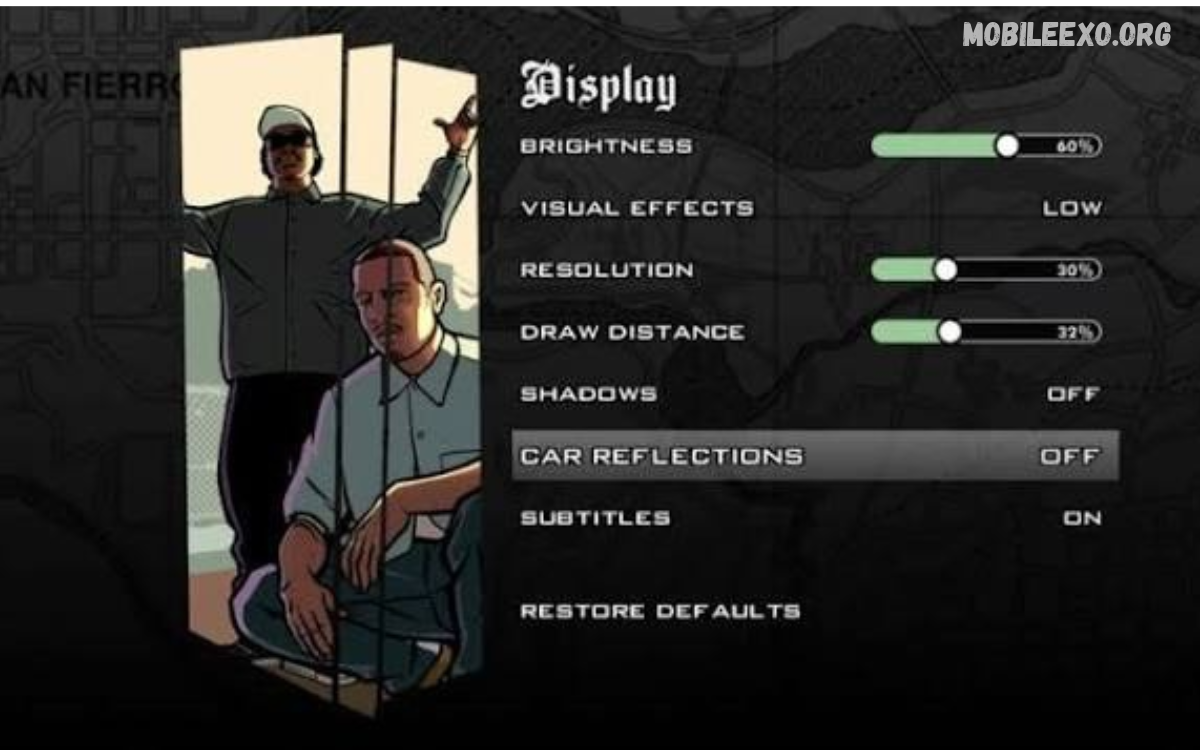
The Best GTA Android Graphics Settings help players enjoy smoother gameplay, improved visuals, and better performance on Android devices. Choosing the right settings reduces lag, improves responsiveness, and creates a more enjoyable gaming experience.
GTA games offer different graphics options depending on the version, device, and installation method. Optimizing resolution, frame rate, shadows, and draw distance helps balance visual quality and performance without unnecessarily straining your phone.
Why GTA Android Graphics Settings Matter
Graphics settings directly affect how smoothly GTA runs on an Android device. High-quality textures, detailed shadows, and extended viewing distances can make the game look impressive, but they may also increase processor and graphics-chip usage.
Selecting suitable settings can reduce stuttering, manage device temperature, and improve gameplay stability. The ideal configuration depends on your phone’s hardware, available memory, game version, and performance requirements.
Best GTA Android Graphics Settings for Smooth Gameplay
The best settings prioritize stable performance while preserving important visual details. Players using entry-level devices should choose lower graphics options, while mid-range and flagship phones can usually handle more demanding settings.
Start with medium or low graphics quality, then increase individual options gradually. Test the game after each adjustment to identify the combination that delivers comfortable gameplay without excessive heating or frame drops.
Best Resolution Settings for GTA Android
Resolution determines the clarity of textures, objects, buildings, and other visual elements. Higher resolution creates sharper images but may require additional graphics processing, particularly during driving, combat, and busy city scenes.
For budget smartphones, use the game’s lower or default resolution options when available. Mid-range devices can try medium or high resolution, while powerful phones may support higher settings if performance remains stable.
Best FPS Settings for GTA Android
Frames per second (FPS) measures how many images appear on the screen each second. Higher FPS can make vehicle movement, camera rotation, and character controls feel more responsive, provided the device maintains a stable frame rate.
Choose a stable 30 FPS option for older devices when available. If your phone and GTA version support 60 FPS reliably, try that setting for smoother movement and faster visual feedback during driving and missions.
Best Texture Quality Settings
Texture quality affects the appearance of roads, vehicles, buildings, clothing, and environmental objects. Higher textures can improve visual detail, but they may consume more graphics memory and sometimes increase loading times on less powerful devices.
Use low or medium textures on entry-level smartphones to maintain consistent performance. High textures are worth testing on devices with stronger hardware and sufficient memory, especially when the game remains responsive during demanding scenes.
Best Shadow Settings for GTA Android
Shadows add depth and realism to characters, vehicles, buildings, and surrounding objects. However, shadow rendering can increase graphics workload, making it a useful setting to adjust when the game experiences stuttering or inconsistent frame rates.
Choose low shadows or disable them if the game provides that option. Players with capable devices can experiment with medium shadows to preserve visual depth while avoiding unnecessary performance loss.
Best Draw Distance Settings
Draw distance controls how far objects, buildings, vehicles, and environmental details remain visible. A longer draw distance makes the game world feel more detailed, but rendering additional objects can affect performance during fast driving and movement through crowded areas.
Set draw distance to low or medium on budget phones for smoother gameplay. Higher settings may work well on stronger devices, particularly when exploring open areas where distant scenery improves the overall experience.
Best Effects Settings for GTA Android
Effects settings can control visual features such as reflections, particles, lighting, and other environmental details, depending on the particular GTA release. These effects make the game more attractive but may increase graphics processing requirements.
Use low or medium effects when performance matters more than visual decoration. Increase individual effects gradually on capable phones, checking whether explosions, vehicle movement, weather, and crowded scenes remain smooth.
Best GTA Android Graphics Settings for Low-End Phones
Low-end Android devices benefit from configurations that minimize unnecessary graphics processing. Older processors, limited RAM, and basic graphics hardware can struggle with demanding settings, particularly when several applications remain active in the background.
Use low graphics quality, reduced resolution where supported, low shadows, and a stable frame-rate option. Keep sufficient storage available, close unnecessary applications, and avoid running the phone under heavy thermal stress during extended gaming sessions.
Best GTA Android Graphics Settings for Mid-Range Phones
Mid-range smartphones generally provide a useful balance between visual quality and gaming performance. Many devices can handle medium textures, moderate draw distance, and improved effects, although actual results vary according to the processor and game version.
Start with medium graphics, moderate shadows, and a supported frame-rate limit. Increase texture quality or resolution when gameplay remains stable, then reduce demanding options if driving through busy locations causes noticeable stuttering.
Best GTA Android Graphics Settings for High-End Phones
High-end smartphones can often support higher visual quality because they feature stronger processors and graphics hardware. Depending on the game version, these devices may handle higher textures, improved effects, and longer draw distances without substantial performance problems.
Try high graphics quality and a higher supported FPS limit, then monitor temperatures and stability. Avoid assuming every setting should remain at maximum, because sustained performance depends on cooling, software optimization, battery conditions, and the game’s own limitations.
How to Reduce Lag in GTA Android
Lag can occur because of limited hardware resources, background applications, overheating, insufficient storage, or poorly optimized game files. Identifying the cause helps players improve performance without unnecessarily lowering every graphics option.
Restart your phone, close unused applications, and maintain adequate free storage. Reduce demanding graphics settings if lag continues, and use official game updates compatible with your device to address available performance improvements.
How to Improve GTA Android FPS
Improving FPS starts with reducing the settings that place the greatest demand on your phone. Lower shadows, reduce resolution where possible, and select a frame-rate option supported by both the device and the game.
Keep your operating system updated when appropriate, disable unnecessary background activity, and avoid playing while the phone is excessively hot. Do not rely on third-party applications promising unrealistic FPS increases or requiring suspicious permissions.
Best Battery Settings for GTA Android
High graphics quality and sustained high frame rates can increase battery consumption during long gaming sessions. Display brightness, background applications, mobile connectivity, and device temperature can also influence how quickly the battery drains.
Use medium graphics and a stable frame-rate limit when you need longer battery life. Reduce screen brightness to a comfortable level, disconnect unnecessary accessories, and avoid gaming while charging if the device becomes excessively hot.
Best Temperature Management for GTA Android
Heat can affect sustained gaming performance because smartphones may reduce processing speed to protect their internal components. Demanding graphics, long sessions, high brightness, and warm surroundings can raise device temperature.
Lower graphics quality if performance declines after several minutes of gameplay. Take breaks, remove heat-trapping obstructions around the phone, and allow the device to cool naturally instead of using extreme cooling methods.
Read Also: GTA Android Gameplay Guide: Features, Controls, and Tips in 2026
Best GTA San Andreas Android Graphics Settings
GTA: San Andreas has appeared in several Android releases, and graphics options can differ between the original mobile edition and newer versions. Available adjustments may include visual quality, brightness, resolution-related options, and controls, depending on the release.
For smoother gameplay, begin with moderate visual settings and a supported frame-rate option. If your version includes advanced graphics controls, adjust them individually and test performance during driving, missions, and exploration before increasing visual quality further.
Best GTA Vice City Android Graphics Settings
GTA: Vice City features a colorful city environment with vehicles, buildings, lighting, and weather-related visual elements. The appropriate graphics configuration depends on the mobile edition, hardware compatibility, and the options exposed in the game’s settings menu.
Choose moderate graphics quality on older smartphones and increase visual detail on stronger devices. If the game stutters during driving or busy scenes, reduce demanding effects where available and check whether the issue persists after restarting the game.
Best GTA III Android Graphics Settings
GTA III offers an open-world environment where stable performance helps make driving, exploration, and missions more comfortable. Older Android phones may need reduced visual quality, while newer devices can often maintain higher settings depending on the game release.
Start with default or medium settings, then lower demanding options if the game experiences slowdowns. Keep the game installation compatible with your Android version, and avoid unofficial modifications that may introduce instability or security risks.
Best GTA Android Graphics Settings Without Root
Players can improve graphics performance without rooting their Android devices. Standard in-game options, Android system settings, storage maintenance, and responsible background-app management can provide useful improvements without changing protected system files.
Adjust available resolution, texture quality, shadows, and FPS options inside the game. Avoid tools that request unnecessary administrator access, promise impossible performance improvements, or require installing unknown APK files from untrusted sources.
Common GTA Android Graphics Settings Mistakes
One common mistake is selecting maximum graphics quality without considering the phone’s capabilities. This can increase heat, reduce frame-rate stability, and make gameplay less responsive, even when the game initially appears to run smoothly.
Another mistake is changing multiple settings at once, which makes it hard to tell which adjustment helped. Change one option at a time, test a consistent gameplay scenario, and keep the configuration that best balances performance and visuals for your device.
Frequently Asked Questions
What Are the Best GTA Android Graphics Settings?
The best configuration depends on your device and GTA version. Start with medium or low graphics, moderate resolution, reduced shadows, and a stable supported FPS limit, then increase visual quality as performance allows.
How Can I Play GTA Smoothly on a Low-End Android Phone?
Lower graphics quality, reduce resolution when supported, close unnecessary apps, and keep enough free storage. If the game still stutters, reduce demanding effects and let the phone cool before continuing.
Is 60 FPS Better for GTA Android?
A stable 60 FPS option can provide smoother movement than 30 FPS. However, not every GTA Android release or smartphone supports it reliably, so choose the highest frame rate your device can maintain comfortably.
Do GTA Android Graphics Settings Improve Battery Life?
Lower graphics settings and a moderate frame-rate limit can reduce processing demands and may help extend battery life. Results vary by device, game version, screen brightness, and other running apps.
Can I Change GTA Android Graphics Settings Without Root?
Yes. You can make many improvements through the game’s built-in settings and standard Android controls. Root access is generally unnecessary to adjust available graphics options and manage background apps.
Why Does GTA Android Lag After Playing for a While?
Performance may decline because the phone heats up, background apps consume resources, or your settings exceed what the hardware can sustain. Lower graphics quality, take breaks, and check for official game updates.
Conclusion
The Best GTA Android Graphics Settings depend on your smartphone‘s hardware, the specific GTA release, and your preferred balance between visual quality and smooth gameplay. Lower settings help entry-level devices, while stronger phones can handle higher textures, better effects, and higher frame rates.
For the best results, adjust resolution, shadows, draw distance, texture quality, and FPS gradually. Monitor performance during gameplay, keep your device cool, and use trusted game versions for a more stable GTA experience on Android.

1 Comment
Pingback: GTA Mobile Game Missions: Types, Tips, and Complete Guide - Mobileexo