

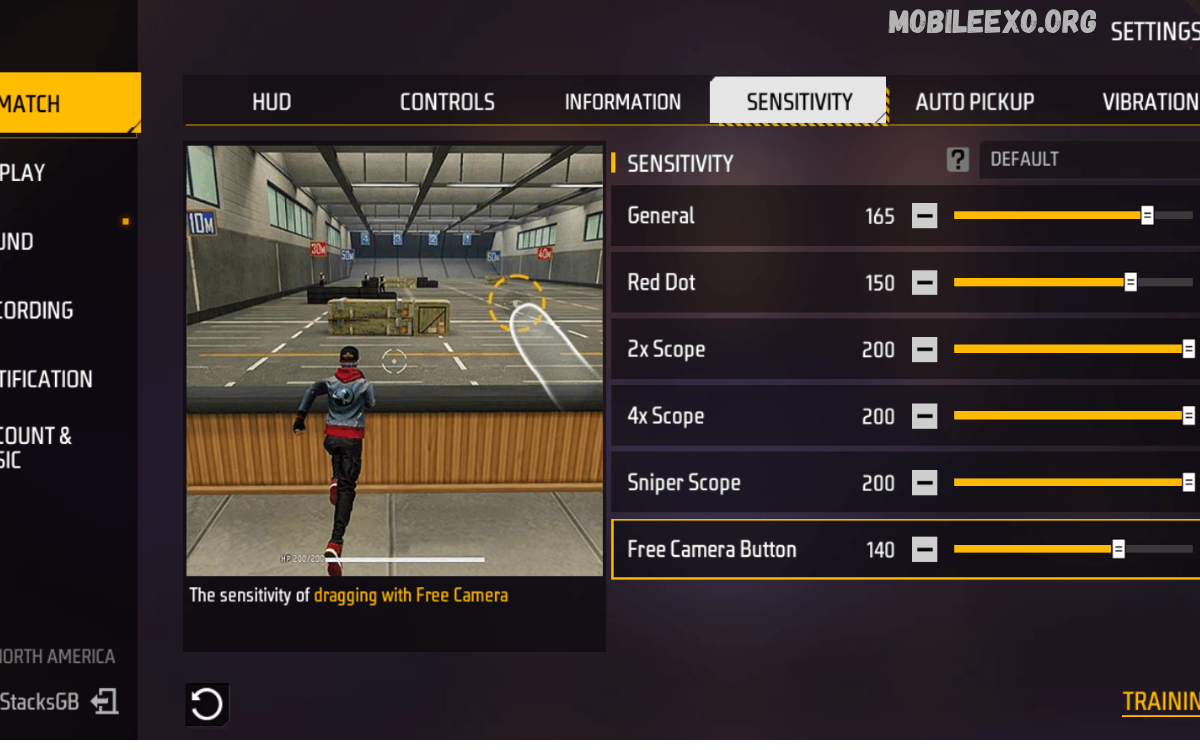
Choosing the right Free Fire Settings can make a significant difference in gameplay. Whether you are a beginner learning the basics or an experienced player looking to improve consistency, properly configured controls, sensitivity, graphics, and performance options can create a smoother gaming experience.
There is no single configuration that works perfectly for every player. A setting that feels comfortable on one smartphone may feel completely different on another because of screen size, touch response, refresh rate, and device performance.
Why Free Fire Settings Matter
Your settings determine how quickly and accurately your commands are translated into gameplay. Sensitivity affects camera movement and aiming, while the HUD determines how easily you can access important buttons. Graphics settings influence visual quality and performance, and control customization can make movement and actions more comfortable.
Good settings can help you:
- Improve overall control
- Make aiming more comfortable
- Reduce unnecessary touch movements
- React faster during encounters
- Maintain smoother gameplay
- Customize the interface for your preferred playstyle
- Balance visual quality and device performance
The goal is not simply to copy another player’s configuration. Instead, use recommended settings as a starting point and adjust them until they feel natural.
Best Free Fire Sensitivity Settings
Sensitivity is one of the most important parts of your Free Fire Settings. It controls how quickly your view and aim respond when you move your finger across the screen.
A practical starting point can be:
- General: 90–100
- Red Dot: 85–95
- 2X Scope: 75–85
- 4X Scope: 65–75
- Sniper Scope: 45–60
- Free Look: 70–85
These values are starting points rather than universal requirements. Players using smaller screens may prefer different sensitivity levels from players using larger displays.
If your aim moves too quickly, gradually lower the relevant sensitivity. If your camera feels slow and difficult to control, increase it in small increments.
General Sensitivity
General sensitivity affects basic camera movement and is particularly important for close-range encounters. A relatively high setting can make turning and tracking feel more responsive.
However, extremely high sensitivity may make your movements difficult to control. If you frequently move past your intended target, reduce the setting slightly and practice again.
Red Dot Sensitivity
Red Dot sensitivity affects aiming while using a red-dot sight. It is especially useful for players who frequently engage opponents at short and medium distances.
A balanced Red Dot setting should allow you to move your aim smoothly without making small adjustments feel uncontrollable. Test it in practice and make gradual changes instead of constantly switching between extreme values.
2X and 4X Scope Sensitivity
Higher magnification requires more precise movement. For this reason, many players prefer lower sensitivity for 2X and 4X scopes compared with General and Red Dot sensitivity.
If your scoped aim feels unstable, lower the setting slightly. If it feels too slow when tracking moving targets, increase it gradually.
Sniper Scope Sensitivity
Sniper gameplay requires controlled movements and precision. A lower sensitivity can make small adjustments easier, especially when using high magnification.
Your ideal sniper sensitivity depends heavily on your touch control. Spend time practicing before making major changes to your configuration.
Best Free Fire Control Settings
Sensitivity is only one part of effective gameplay. Your control layout is equally important because poorly positioned buttons can make basic actions uncomfortable.
Customize your HUD so that frequently used controls are easy to reach. Movement, firing, crouching, jumping, and other essential actions should be positioned where you can access them without unnecessary finger movement.
Consider these principles:
- Keep the movement control in a comfortable position.
- Place important action buttons within easy reach.
- Avoid overlapping buttons.
- Adjust button sizes according to your screen.
- Keep less frequently used controls away from the main action area.
- Test your layout in practice before using it in competitive matches.
HUD Customization
The HUD should match your preferred control style. Players who use multiple fingers may benefit from a more customized layout because different fingers can handle different actions.
A simple layout can work well for beginners, while more advanced players may prefer additional customization. The important factor is consistency.
Graphics Settings for Smooth Gameplay
Graphics settings affect both visual quality and performance. If your smartphone has limited hardware resources, choosing higher graphics quality may result in reduced performance.
For smoother gameplay, consider using a performance-focused configuration:
- Select a graphics level your device can maintain comfortably.
- Reduce demanding visual effects if performance becomes inconsistent.
- Keep the frame rate option at an appropriate level for your device.
- Close unnecessary background applications before playing.
- Avoid using settings that cause excessive heat or performance drops.
On a powerful device, higher graphics quality may provide a more visually detailed experience. On a lower-end smartphone, prioritizing stability is generally more useful than maximizing visual quality.
High Frame Rate and Performance
Frame rate affects how smoothly gameplay appears. When supported by your device and game version, a higher frame-rate option can make movement and controls feel more responsive.
However, higher frame rates can increase battery consumption and heat. If your phone becomes unusually hot or performance becomes unstable, consider reducing demanding settings.
Read Also: PUBG Mobile New Tips: A Complete Guide to Playing Better in 2026
Free Fire Settings for Better Aim
Improving aim requires both suitable settings and regular practice. There is no legitimate setting that automatically guarantees perfect accuracy.
To develop better aim:
- Start with a balanced sensitivity configuration.
- Enter the practice area.
- Test different sensitivity levels.
- Practice tracking moving targets.
- Practice controlled camera movements.
- Adjust one setting at a time.
- Keep the configuration that feels most consistent.
Making several changes simultaneously makes it difficult to determine which adjustment actually helped.
Crosshair and Target Awareness
Good settings should make it easier to maintain awareness of your surroundings. Keep your interface clear enough that important visual information is not hidden behind unnecessary buttons.
Develop the habit of keeping your crosshair positioned near the area where you expect an opponent to appear. This reduces the amount of movement required when reacting to an encounter.
Free Fire Settings for Low-End Devices
Players using entry-level smartphones should prioritize stability. High-quality graphics may look attractive, but they can create unnecessary performance problems on hardware with limited resources.
For a lower-end device:
- Use moderate or lower graphics quality.
- Choose a suitable frame-rate option.
- Close unnecessary apps.
- Keep sufficient storage space available.
- Avoid excessive background activity.
- Keep the game updated through official sources.
- Monitor device temperature during long sessions.
If gameplay becomes inconsistent, lowering visual quality may provide a better experience than trying to maintain maximum graphics.
Free Fire Settings for High-End Devices
High-end smartphones generally provide more flexibility. Players can experiment with higher visual quality and frame-rate options while maintaining stable performance.
Even with powerful hardware, however, maximum settings are not automatically the best choice. If a specific configuration causes excessive heat, battery drain, or instability, reducing certain options may produce a better overall experience.
How to Find Your Perfect Settings
Finding the best Free Fire Settings requires experimentation. Start with a balanced configuration instead of copying extreme settings from another player.
Use this process:
Step 1: Choose a starting sensitivity
Use moderate-to-high General and Red Dot sensitivity, then adjust according to your touch response.
Step 2: Test your scopes
Practice with 2X, 4X, and sniper scopes and determine whether your movements feel controlled.
Step 3: Customize your HUD
Move frequently used buttons into comfortable positions.
Step 4: Test graphics
Select graphics options that your smartphone can handle consistently.
Step 5: Practice
Spend time in practice modes before deciding whether a setting is genuinely effective.
Step 6: Make small adjustments
Change only one or two values at a time. Small adjustments make it easier to identify improvements.
Common Free Fire Settings Mistakes
Many players change their settings too frequently. Constantly switching between configurations prevents muscle memory from developing.
Other common mistakes include:
- Copying another player’s settings without testing them
- Using extremely high sensitivity without control
- Ignoring device performance
- Changing the HUD repeatedly
- Choosing graphics that overload the device
- Expecting settings alone to improve gameplay
- Using unofficial modification tools
A reliable configuration should support your skills rather than replace practice.
Safe and Legitimate Gameplay
Players should always use official game features and avoid unauthorized modifications, scripts, or third-party tools that claim to provide unfair advantages. Such tools can create security risks and may violate game rules.
Instead, focus on legitimate improvements such as sensitivity adjustments, HUD customization, practice, device optimization, and better game awareness.
Frequently Asked Questions
What are the best Free Fire Settings?
The best settings depend on your device and playing style. A balanced combination of sensitivity, HUD customization, and stable graphics is a good starting point.
What sensitivity should I use in Free Fire?
Start with moderate-to-high sensitivity and adjust it gradually according to your touch response and aiming comfort.
Should I use high sensitivity?
High sensitivity can make camera movement faster, but it is not automatically better. Choose a level that allows controlled and accurate movements.
How can I improve my Free Fire aim?
Use comfortable sensitivity, practice regularly, learn controlled movements, and avoid changing your configuration too frequently.
What graphics settings are best for low-end phones?
Lower or moderate graphics settings are generally preferable when your priority is stable performance.
Should I copy professional players’ settings?
Professional settings can provide useful starting points, but they may not suit your device or personal control style.
How often should I change my settings?
Make changes when you identify a specific problem. Avoid changing settings constantly because consistency helps develop muscle memory.
Can settings guarantee better accuracy?
No. Settings can improve comfort and control, but accuracy depends on practice, positioning, movement, and game awareness.
Are third-party Free Fire tools recommended?
Unofficial tools and modifications can create security or account risks. Stick to legitimate features and official game options.
What is the most important Free Fire setting?
Sensitivity and HUD configuration are among the most important because they directly affect how comfortably you control the game.
Cocluison
The best Free Fire Settings are not necessarily the same for every player. Your smartphone, screen size, touch response, playstyle, and personal preferences all influence which configuration feels comfortable.
Start with balanced sensitivity, create a practical HUD, choose graphics that provide stable performance, and spend time practicing before making additional adjustments. Avoid constantly copying other players or changing settings after every match.
