

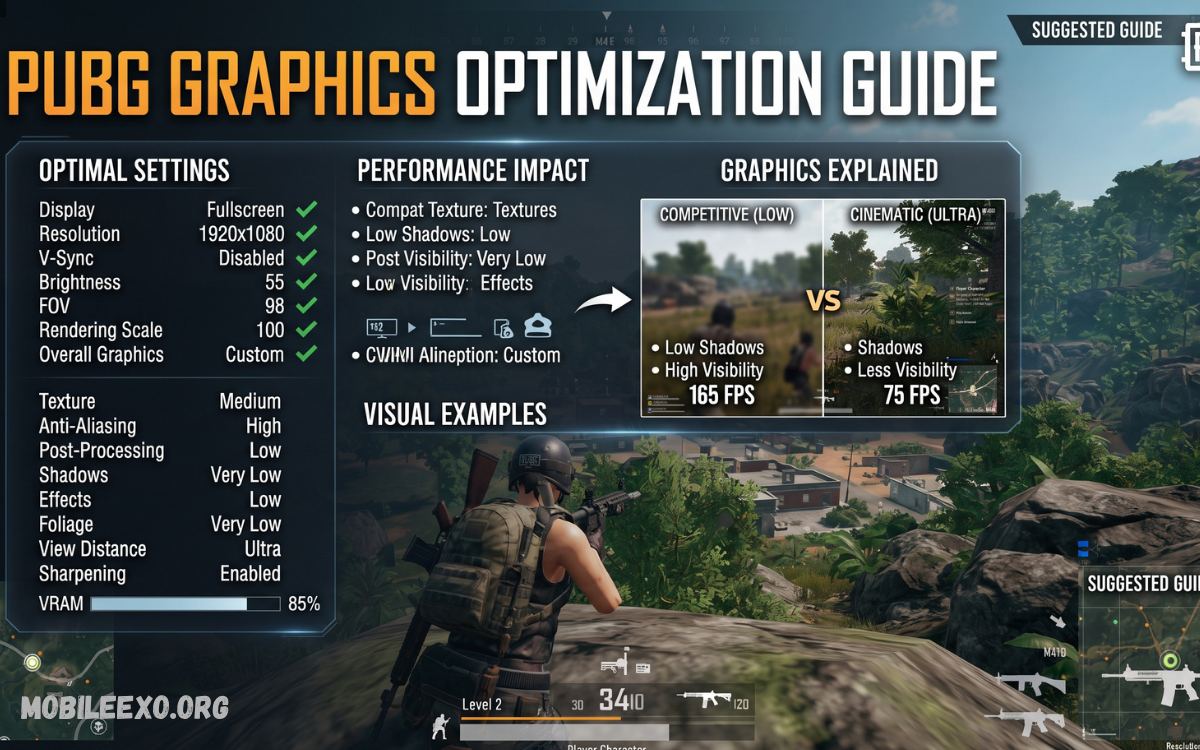
A well-optimized graphics setup can make a major difference in PUBG gameplay. Choosing the right combination of graphics quality, frame rate, shadows, anti-aliasing, and visual effects can improve responsiveness while making enemies easier to spot. However, the best configuration depends on your device hardware, screen refresh rate, temperature, and personal preferences.
This PUBG Graphics Guide explains how to optimize your in-game graphics settings for a smoother and more consistent experience. Instead of simply selecting the highest visual quality, players should focus on achieving a stable frame rate and clear visibility.
Why Do PUBG Graphics Settings Matter?
PUBG is a competitive battle royale game where quick reactions and accurate visual information are extremely important. Graphics settings influence how smoothly the game runs and how clearly you can see the environment.
A stable frame rate generally makes camera movement and aiming feel more responsive. Meanwhile, excessive graphical effects can put additional pressure on your device’s processor and graphics hardware.
Understanding PUBG Graphics Quality
PUBG typically provides different graphics quality options depending on the device. These settings determine the overall visual quality of textures, environments, effects, and other graphical elements.
Common graphics presets may include options such as Smooth, Balanced, HD, HDR, Ultra HD, or other quality levels depending on the game version and device.
Smooth Graphics
Smooth graphics prioritize performance over visual detail. This option is often suitable for competitive players and devices that struggle with higher graphical settings.
Lower visual quality reduces the workload on the device, potentially allowing it to maintain a higher and more stable frame rate.
Balanced Graphics
Balanced settings provide a compromise between performance and visual quality. They are useful for players who want attractive graphics without placing excessive pressure on their hardware.
HD and Higher Graphics
Higher-quality presets improve visual detail but require more processing power. They can be suitable for powerful devices with sufficient cooling and performance capacity.
However, higher graphics do not automatically mean better competitive performance. If increasing graphics quality causes noticeable frame drops, lowering the graphics preset can provide a better experience.
Choose the Highest Stable Frame Rate
Frame rate is one of the most important settings in this PUBG Graphics Guide.
A higher frame rate can make movement and camera transitions appear smoother. It can also make fast gameplay feel more responsive when your device can maintain the selected frame rate consistently.
Rather than choosing the highest available number without considering your hardware, test your device under real gameplay conditions.
Best Graphics Settings for Low-End Devices
Budget smartphones may have limited processing power, graphics performance, RAM, or thermal capacity. Using demanding graphics settings on such devices can result in overheating, stuttering, and battery drain.
A practical configuration for lower-end hardware is:
- Graphics: Smooth or the lowest stable option
- Frame Rate: Highest stable option available
- Anti-Aliasing: Off or low
- Shadows: Off or low
- Auto-adjust graphics: Enable if necessary
- Brightness: Adjust according to your environment
- Effects: Low where available
The goal is to reduce unnecessary graphical workload while maintaining clear visibility.
Players should also close unnecessary background applications before launching the game. This can help free system resources and reduce interruptions.
Best Graphics Settings for Mid-Range Devices
Mid-range smartphones can usually handle a balance between performance and visual quality.
A recommended starting point is:
- Graphics: Smooth, Balanced, or HD
- Frame Rate: High or higher stable option
- Anti-Aliasing: Low or medium
- Shadows: Low
- Effects: Medium
- Auto-adjust graphics: Optional
After applying these settings, test the game during a complete match. Pay attention to performance during crowded areas and intense fights rather than judging the settings from the lobby.
If the device remains stable, you can gradually increase individual graphical options.
Best Graphics Settings for High-End Devices
Powerful gaming smartphones can support higher graphical settings, but optimization is still important.
A high-end configuration may include:
- Graphics: High-quality preset supported by the device
- Frame Rate: Highest stable option
- Anti-Aliasing: Medium or high when performance allows
- Shadows: Medium or high
- Effects: High
- Brightness: Comfortable competitive level
High-end hardware gives players more flexibility, but temperature remains important. Extended gaming sessions can increase device heat, potentially affecting performance.
Graphics vs Frame Rate
One of the most important decisions in PUBG is whether to prioritize graphics quality or frame rate.
Graphics quality improves the appearance of the game, while frame rate influences smoothness and responsiveness. For casual players, higher graphics may provide a more visually enjoyable experience.
Anti-Aliasing Settings
Anti-aliasing reduces jagged edges around objects and characters. It can make the game look smoother, especially on larger displays.
However, anti-aliasing can require additional graphical resources. If your device is struggling with performance, disabling or lowering this setting may help.
Shadow Settings
Shadows can improve realism by adding depth to buildings, terrain, and objects. However, they can also increase the graphical workload.
If your primary goal is stable gameplay, lower shadow settings are generally worth considering.
Brightness and Visibility
Brightness is another important component of your PUBG setup. A suitable brightness level can help you distinguish objects and characters in darker environments.
Avoid using an unnecessarily extreme brightness level. Instead, adjust it based on your screen and surrounding lighting conditions.
Read Also: BGMI Guide: Complete Guide to Battlegrounds Mobile India in 2026
Color and Display Settings
Depending on the available game and device options, players may have access to different color styles or display enhancements.
A clearer visual style can make environments easier to understand at a glance. However, there is no universal color configuration that works perfectly for every player.
How to Reduce Frame Drops
Frame drops can occur for several reasons, including high graphics settings, device temperature, insufficient available resources, background applications, or demanding gameplay situations.
To improve stability:
- Lower graphics quality.
- Select a stable frame-rate option.
- Reduce shadows and effects.
- Close unnecessary applications.
- Keep your game updated.
- Avoid excessive device heat.
- Maintain sufficient free storage.
- Restart the device if performance becomes unusually poor.
- Use the device’s normal performance mode rather than experimenting with unsafe modifications.
If problems continue, your device may simply be reaching its hardware limits.
PUBG Graphics Settings for Better Visibility
Good visibility is essential in a battle royale environment. Excessive visual effects can sometimes make the screen feel cluttered.
A performance-focused setup can help create a cleaner image by reducing unnecessary effects and shadows.
Optimize Your Device Before Playing
Graphics settings are only one part of performance optimization. Your smartphone’s overall condition can also affect gameplay.
Before playing, close applications you do not need and make sure the device has enough available storage. Avoid covering the phone’s cooling areas, especially during longer gaming sessions.
If the device becomes unusually hot, taking a break can help it return to a normal operating temperature.
Should You Use Maximum Graphics?
Maximum graphics are not necessary for every player.
If your device can maintain stable performance at high quality, using higher graphics can provide a more detailed experience. However, if high graphics cause stuttering, heat, or inconsistent frame rates, lower settings are usually the better choice.
Recommended PUBG Graphics Presets
Here is a simple starting point:
Competitive Performance Preset
- Graphics: Smooth
- Frame Rate: Highest stable option
- Shadows: Off or low
- Anti-Aliasing: Off or low
- Effects: Low
- Brightness: Comfortable high level
- Auto-adjust graphics: Use if necessary
Balanced Preset
- Graphics: Balanced or HD
- Frame Rate: High
- Shadows: Low
- Anti-Aliasing: Medium
- Effects: Medium
- Brightness: Comfortable level
Visual Quality Preset
- Graphics: Highest stable supported option
- Frame Rate: Highest stable option
- Shadows: Medium or high
- Anti-Aliasing: Medium or high
- Effects: High
- Brightness: Adjusted for visibility
These are starting points rather than universal rules. Every device behaves differently, so testing remains important.
Common Graphics Mistakes to Avoid
One common mistake is selecting the highest graphics preset simply because it appears to offer the best experience. High-quality graphics can increase hardware demand and may reduce frame-rate stability.
Another mistake is changing too many settings without testing them individually. This makes optimization difficult because you cannot identify which setting caused a performance improvement or problem.
Frequently Asked Questions
What is the best PUBG graphics setting?
The best setting depends on your device. For competitive gameplay, prioritize stable frame rates and clear visibility over maximum graphics quality.
Should I use Smooth graphics in PUBG?
Smooth graphics can be a good choice when you want stable performance, especially on budget or mid-range devices.
Does higher graphics improve gameplay?
Higher graphics improve visual detail but do not necessarily improve competitive performance. Stable frame rates are often more important.
What should I do if PUBG keeps lagging?
Lower graphics quality, reduce demanding effects, close unnecessary background applications, and check whether your device is overheating.
Is high frame rate better than high graphics?
For competitive gameplay, a stable high frame rate is generally more useful than maximum visual quality.
Should I turn off shadows?
If you experience performance problems, lowering or disabling shadows can reduce graphical workload.
Does brightness affect PUBG performance?
In-game brightness generally has a smaller performance impact than major graphics settings, but your device’s screen brightness can affect battery consumption.
How often should I change PUBG graphics settings?
Only change them when your device, game version, or performance requirements change. Test adjustments before keeping them permanently.
Are third-party graphics tools necessary?
No. The game’s built-in graphics options are the safest place to configure your experience.
What is the most important PUBG graphics setting?
Frame-rate stability is one of the most important factors for a smooth competitive experience. Choose the highest frame-rate option your device can maintain consistently.
Concluison
This PUBG Graphics Guide shows why choosing the right graphics configuration is more important than simply selecting the highest available quality. A strong setup should balance visual clarity, frame-rate stability, device temperature, and personal comfort.
For competitive players, a stable frame rate and clean visibility are often the most important priorities. Budget devices can benefit from performance-focused settings, while mid-range and high-end smartphones can gradually increase graphical quality if their hardware remains stable.
